On this page (11)
- How does scanning work at the till?
- What happens when I scan a product I already sell?
- How do multipack and case barcodes work?
- What happens when I scan a code the till does not know?
- Does every till scan the same way?
- Can staff scan while a customer is looking at a product?
- Step by step: set up a product for scanning
- What goes wrong with barcodes, and how do I avoid it?
- Scanning and the rest of the till
- See it in a tour
- Questions people ask
How does scanning work at the till?
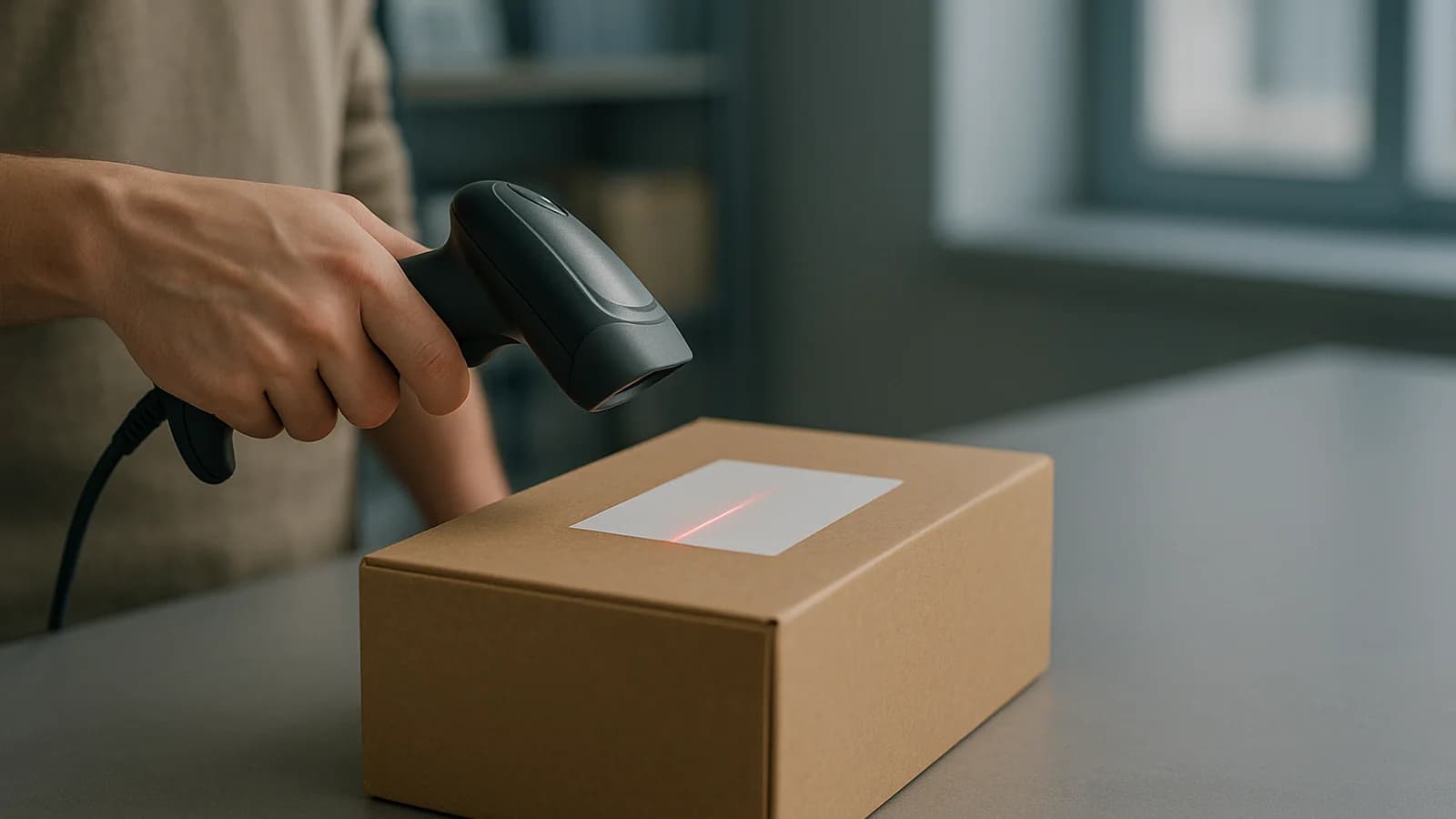
Plug the scanner in, or pair it, and scan. There is no button to press first and no scanning mode to turn on: the till listens the whole time it is open, even when nothing on the screen is selected.
On most tills the search box is built to take scans too. If the cursor is sitting in it, a scan is still treated as a scan and the code is cleared out of the box afterwards, so the item is never added twice. If the cursor is in some other box, such as a customer's name, the scanner simply types into it, the way a keyboard would.
What happens when I scan a product I already sell?
It goes straight into the sale. The till plays a short ding, because many handheld scanners make no sound of their own. On most tills the item's photo then flies into the cart, and on the main till its tile flashes as well, so the cashier can see what went in without reading the screen. Scan the same item again and the quantity goes up by one. Five tins of the same soup are five scans, with no quantity to type.
Behind each scan is a fixed search order: the product's SKU first, then the maker's barcode, then any extra barcodes saved on a product, then barcodes saved on a product's sale units. The till looks through the products it already holds before it asks the server about anything it has not loaded.
How do multipack and case barcodes work?
A product can carry more than one barcode. Save the outer carton's barcode on the product as an extra barcode with a pack size, say 12, and scanning the carton adds 12 singles to the sale with a short "Pack of 12 added" message. The single can's own barcode still adds one.
Some businesses sell a case or a dozen as a sale unit with its own price. A barcode saved on that unit adds one of that unit on the main till, at the unit's price. Quick Sale and the other tills sell in single items, so there a unit barcode is turned into the same number of singles when that comes to the same money, and refused otherwise with a message to sell it at the main till or scan the single item. That way a case is never sold for the price of one can.
What happens when I scan a code the till does not know?
A soft warning tone sounds, and a sheet called New barcode slides in, headed "Not in your products yet". The counter keeps working; nobody goes off to the back office. The sheet has two tabs:
- New product: type a name and a selling price, then press Save and add to sale. For a standard retail barcode the name is often suggested from a public barcode database while you type the price. Under More you can add the cost, how many you have and a category.
- Link to a product: the code belongs to something you already sell, such as a new pack design or a case. Search for the product, pick it, answer How many in this pack?, and press Link and add to sale. The code is saved on that product, so next time it scans straight in.
Each person only sees the tabs their role allows. While the sheet is open, a second scan is held back with "Finish this barcode first, then scan the next item."
Does every till scan the same way?
Mostly, with a few differences that suit each trade:
| Till | What a scan does |
|---|---|
| Main till | Adds the product, pack or sale unit; unknown codes open New barcode |
| Quick Sale | Adds the product or pack; unknown codes open New barcode |
| Phone New Sale | Adds the product; unknown codes open New barcode; offline, it checks the products saved on the phone |
| Food till | Adds a menu item whose SKU is that barcode, such as a bottled drink; an unknown code only shows a message |
| Electronics till | A 15-digit code is treated as an IMEI and searches the devices; accessories add like any product |
| Paint till | A car colour code opens that colour under Car colours; short codes with no exact match run a search |
On the food till, a menu is not a product list, so an unknown code does not offer to create anything. It says "No menu item has the code…" and tells you to put the code in the item's SKU in Menu. On the paint till, a product's own code always wins over a colour code, and the colour panel only opens when car paint is switched on.
Can staff scan while a customer is looking at a product?
Yes. Scanning does not wait for the big product photo to be closed: the photo is put away and the scanned item lands in the sale. When the code is unknown, the photo is put away first and the New barcode sheet appears on top, never hidden behind it. The one pause is the Barcode & QR sheet used for printing labels; while it is open the till ignores scans, so a label job cannot slip an item onto the sale.
Step by step: set up a product for scanning
- Plug a USB scanner into the till computer, or pair a Bluetooth scanner with the tablet as a keyboard device.
- Open the till and scan any product you already sell. It should go into the sale with a ding.
- Scan a product you have never entered. The New barcode sheet opens.
- On New product, check the suggested name or type one, and enter the selling price.
- Open More to add the cost and how many you have, so stock and profit are right from the first sale.
- Press Save and add to sale. If this was only a test, take the line off the sale; the product stays in Products.
- Scan the outer carton of a product you sell singly, choose Link to a product, pick the product and enter how many are in the pack.
- Press Link and add to sale and check the sale shows the pack quantity.
- Take the test lines off, scan two or three real items, and check each one's name and price before the first customer.
What goes wrong with barcodes, and how do I avoid it?
Most problems are in the product list, not the scanner. A code typed into the SKU field with a stray character, or a maker's barcode saved on the wrong product, sends every scan to the wrong item until someone fixes it. When a scan adds something unexpected, open that product and check its codes before you blame the hardware.
Watch for shop-made codes that clash. If one product's SKU is the same as another product's maker's barcode, the SKU wins, because the till checks SKUs first. Keep your own codes in a range that cannot match a printed barcode, for example with the starting letters you set under Product codes in Settings.
Finally, a scanner that seems to do nothing is usually typing into a box. Click on an empty part of the till, or into the search box, and scan again.
Scanning and the rest of the till
Scanning is the fastest way to fill a sale on the POS till and on Quick Sale. The till settings page covers the device options around it, such as till sounds. Codes scanned at the counter are the same codes your stock and warehouses screens use, and our stocktake guide explains why clean barcodes make counting faster. When an order already placed needs another item, editing orders shows how to open it in the till and scan it in.
See it in a tour
Short guided tours of the real screens, with sample data. No sign-up.
- Add a barcode to a product you already haveScan the maker's barcode into a product you already sell, get told if the code is taken, and give the gift box its own code that adds four at the till.
- Scan to sell at the tillPlug in a USB or Bluetooth scanner and test it, scan to sell, scan a multipack for its pack, and add an unknown code without leaving the sale.
- Scan to sell at the tillPlug in a USB or Bluetooth scanner and test it, scan to sell, scan a multipack for its pack, and add an unknown code without leaving the sale.
- Selling a phone with a warrantyScan the IMEI, choose the warranty, add the case and the customer, take the payment and hand over a warranty card.
- A trade sale on accountThe mixed batch and the sundries on the paint till, the builder's usual discount taken off, and the sale put on account inside the credit limit.
- Print on the printer you haveTell this computer which printer it has, Laser / inkjet, Dot-matrix or Thermal, and every invoice prints to suit it.
Questions people ask
Do I need special software for my barcode scanner?
No. Most USB and Bluetooth scanners act like a keyboard, typing the code very fast and pressing Enter. The till recognises that speed and treats it as a scan, with nothing to install or switch on.
Can I scan with my phone or tablet camera?
Yes. The main till has a Scan button that opens the camera, and Quick Sale and the phone New Sale screen show a camera button on phones and tablets. The food, paint and electronics tills scan with a plugged-in or Bluetooth scanner.
Who can add a new product from an unknown barcode?
The owner, an admin or a warehouse manager can create a new product and can also link a code to an existing product. A store manager can link codes but not create products. Anyone else sees Ask a manager.
Does scanning work when the internet is down?
Codes for products already loaded on the till are matched on the device, so they keep scanning. A code the till has not seen needs the server; if it cannot be reached, the till says it could not look the code up and suggests searching by name.
Can I print barcode labels?
Yes, one product at a time from the main till. Open a product's big photo, tap Barcode & QR, then Print label. A print window opens with the name, SKU, price, a QR code and a barcode made from the maker's code, or from the SKU when there is none, so the label scans back to the same product.
What happens if I scan a product that has been archived?
The till still recognises it, because returns and stock counts need that, but it will not sell it. A message says the product can't be sold and asks you to make it active in Products first.