On this page (11)
- What does the EasyTaskr till do?
- How do I add items to a sale?
- How does the till price each customer correctly?
- What are the main parts of the till screen?
- Step by step: a sale at the till
- How do returns and refunds work?
- What happens if the internet drops?
- How much time does a fast till save?
- What should I set up first?
- See it in a tour
- Questions people ask
What does the EasyTaskr till do?
It takes a sale from the first scan to a printed or shared receipt, and it puts that sale straight into your stock, your customer accounts and your reports. There is nothing to export at the end of the day, because the till and the back office are the same system.
The till runs in a browser, so the same screen works on a tablet at the counter, a computer in the office and a phone on the shop floor. Each device can be set up its own way: in Tablet mode it is built for fingers, and in Desktop mode it is built for a keyboard and a scanner.
How do I add items to a sale?
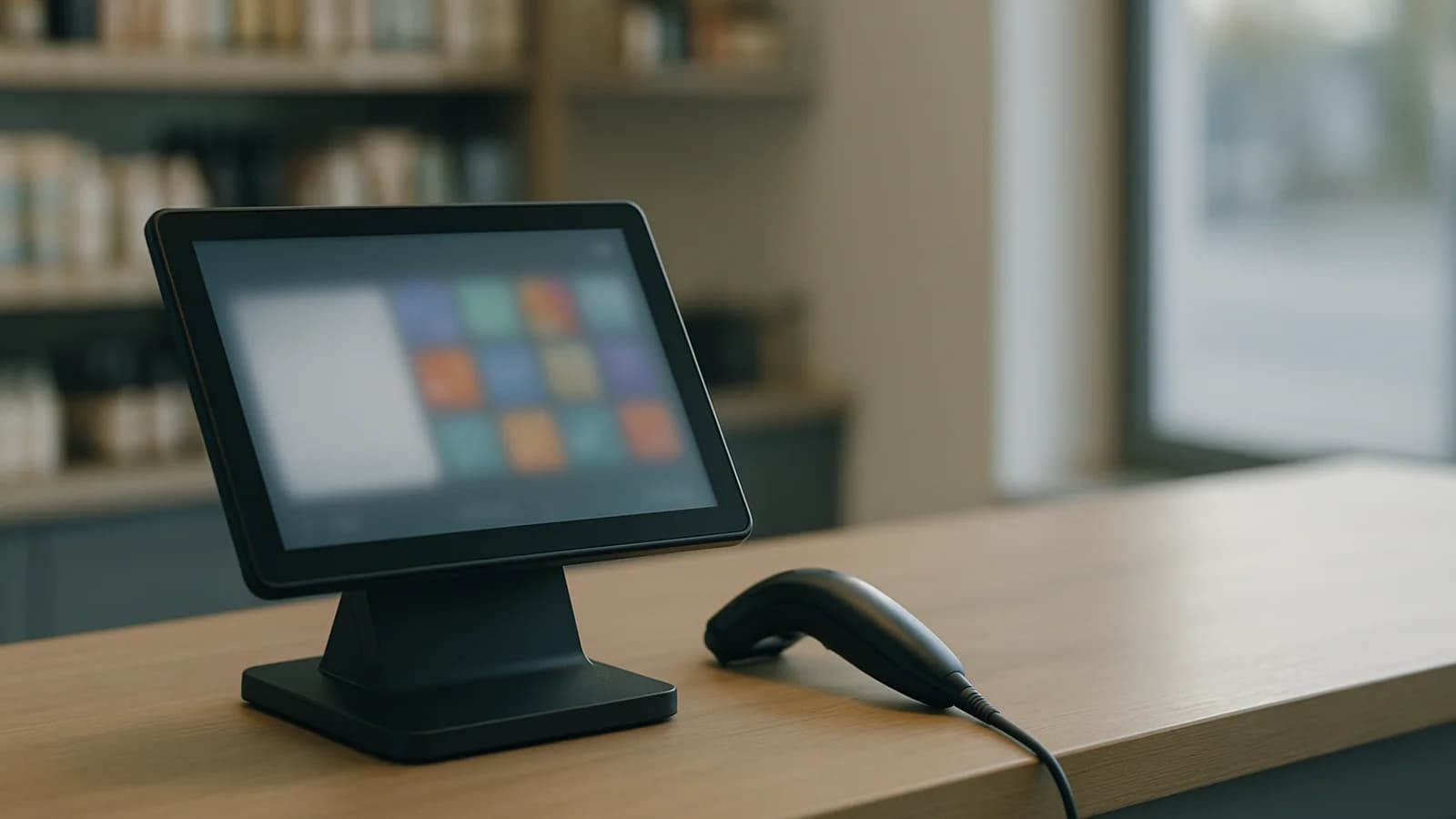
Scan, tap or search. A USB or Bluetooth scanner is always listening, with no button to press first. Scanning the same item again adds one to the quantity, and a case or multipack barcode adds the whole pack. If you have no scanner, the Scan button uses the device camera.
For items without a barcode, the search box finds products by name, SKU or barcode. Each product tile can show its price and stock, and the till's settings let you choose bigger pictures and how many tiles sit on a row.
On some tills a tap should add the item; on others staff and customers tap to look. Each till chooses under When you tap a product: Add to sale, or Show photo, which opens the product big with its price and stock so a curious tap never puts the wrong item on the sale. The choice is shared by every till on the device.
How does the till price each customer correctly?
Each till sets how a sale starts: Walk-in or With a customer. A walk-in sale is at the retail price with no customer on it, which is what a corner shop wants in a morning rush.
Choose a customer instead and the lines re-price to that customer's price list and agreed discount. You can also take a discount on one line or the whole sale, as a percentage or an amount. Offers you have set up, such as 10% off a range for four weeks, apply on their own at the till during their dates.
If the customer buys on account, the till shows whether the sale Fits on account or is Over their credit: pay now. A trade counter can start every sale with the customer, so their prices, their discount and their credit are on the screen before the first product goes in.
What are the main parts of the till screen?
| Part | What it is for |
|---|---|
| Search and scan bar | Find a product by name, SKU or barcode, or scan with the camera |
| Product tiles | Tap to add, or to see a big photo, depending on the till's setting |
| Current sale | The lines, discounts and total; on a phone it folds into a bar at the bottom |
| Park | Put a sale aside and serve the next customer |
| Pay | Choose how the customer paid and finish the sale |
| Online or Offline | Shows whether sales are going straight through or being held |
Step by step: a sale at the till
- Open the till; the screen reads "Tap a product or scan a barcode to start the sale."
- If the customer has an account, choose Who is this order for? and pick them by name, code or phone. Otherwise leave it as walk-in.
- Scan each item, or tap its tile. Scan again to add another of the same.
- For anything without a barcode, type part of its name in the search box and add it.
- Change a quantity or take a discount off a line if you have agreed one.
- If the customer goes to fetch something, press Park, give the sale a short name such as "blue jacket", and serve the next person.
- When they are ready, open Parked, pick the sale and carry on.
- Press Pay, choose Cash, Card, Bank Transfer or Cheque, and enter the amount.
- On the confirmation screen, press Print receipt, or send the order on WhatsApp or by email.
- Press Close & new order and the till is ready for the next customer.
How do returns and refunds work?
Returns start from the receipt. Under Returns, scan the receipt to find the sale. The screen shows how many of each item can still come back, so the same item cannot be refunded twice. Mark each returned item's condition; anything marked damaged is refunded but never goes back on the shelf.
Then choose what happens to the money: Give the money back now, up to what the customer actually paid, or Keep it as credit on their account. One button finishes it, and the return is on record for your reports and the day's cash up.
What happens if the internet drops?
The till keeps selling. The top bar changes to Offline and each sale is held on the device. When the connection comes back the held sales are sent, and Send held sales now pushes them at once. If a price changed in the office while the till was offline, the difference is shown for a manager to settle rather than being quietly accepted.
How much time does a fast till save?
More than it looks. A worked example: a shop serves 220 customers on a busy day. If each sale takes 10 seconds less because items are scanned or tapped instead of keyed, that is about 37 minutes saved in a day, much of it in the queue at the busiest hour. Numbers like these are only a sample, but the queue is where shoppers give up, so it is worth timing your own. Our guide on how to choose a POS system lists what else to test before you decide.
What should I set up first?
Add your products with barcodes and photos, and fill in cost prices so your profit reports are right from the first sale. Set up price lists if some customers pay different prices. Decide how each till starts a sale and what a tap does. Then do one practice day, park a sale, take a return and finish with an end-of-day cash up, so staff have seen every screen before a busy one.
See it in a tour
Short guided tours of the real screens, with sample data. No sign-up.
- Saturday at the tillScan, pick the right colour and size, let the offer apply itself, and take the payment.
- Milk, bread and a queueQuick keys for the everyday things, a basket that adds itself up, and cash or the tab.
- The morning rush: tap, tap, doneQuick keys for what sells most, the basket adds itself up, and cash or credit closes the sale.
- The trade counter, customer firstThe till starts with the customer, so their price list, agreed discount and credit apply to every line before it is charged to their account.
- A mug comes back chippedFind the sale, say what came back and whether it can be sold again, then refund or credit.
- Add a barcode to a product you already haveScan the maker's barcode into a product you already sell, get told if the code is taken, and give the gift box its own code that adds four at the till.
Questions people ask
What hardware do I need for the EasyTaskr till?
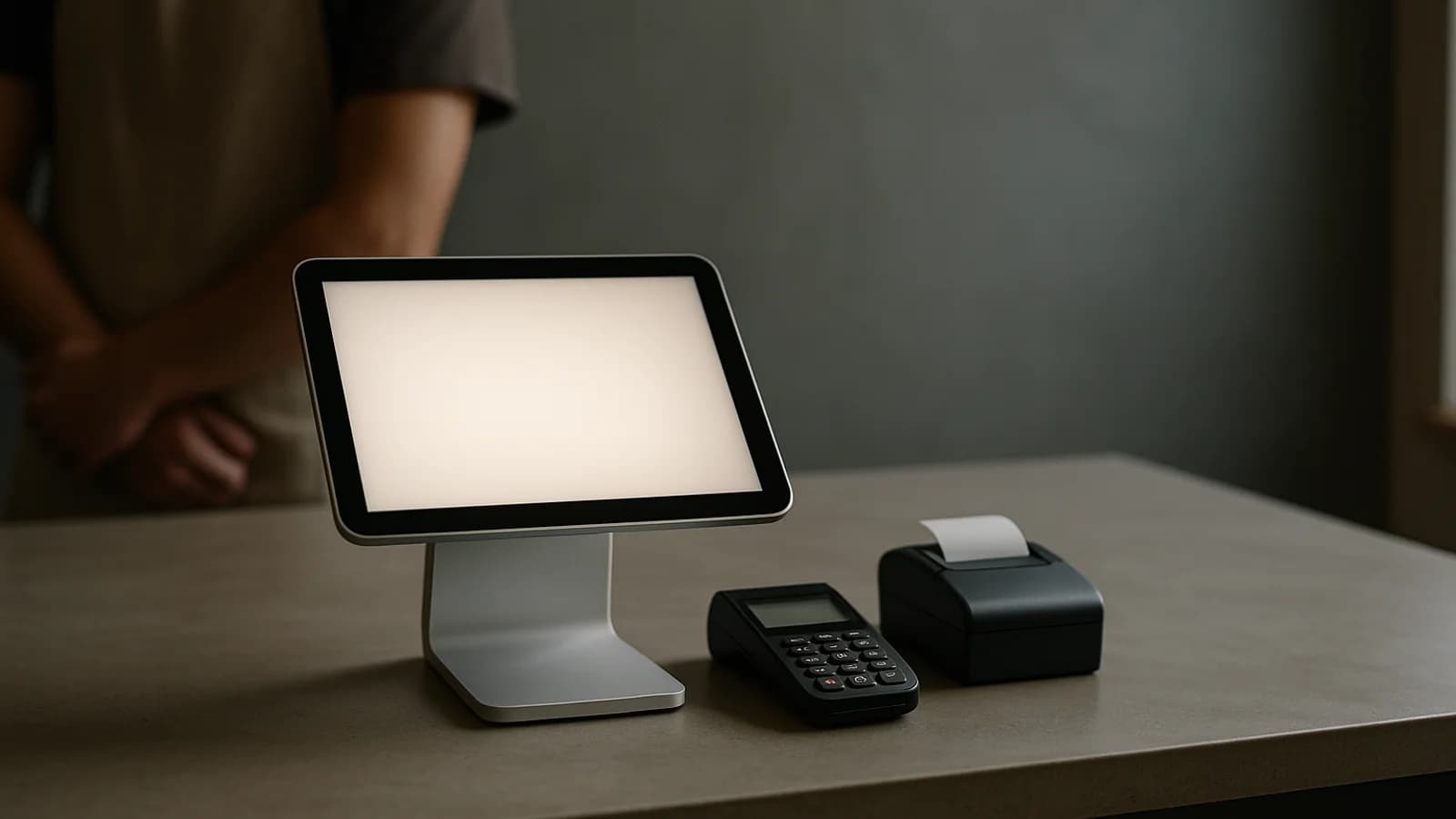
A tablet, computer or phone with a browser. A USB or Bluetooth barcode scanner works without any setup, and the device camera can scan too. Receipt printing and opening a cash drawer work through a connected printer.
Does the till work without internet?
Yes. If the connection drops, the till shows Offline and keeps sales on the device. When it is back online they are sent, and you can press Send held sales now to push them straight away.
Can I give a customer their own prices at the till?
Yes. Choose the customer and the lines re-price to their price list and agreed discount. Lines whose price you changed by hand keep your price.
Can I split one sale between cash and card?
Not within a single sale today; each sale is paid with one method. Paying off an account balance, outside a sale, can be split across several methods.
What happens when I scan a barcode the till does not know?
A sheet opens saying the code is not in your products yet. You can type a name and price to sell it now, or link the code to a product you already have.
Can staff change a price at the till?
Only with approval. A price override asks for the new line price, a reason, and a manager's username and PIN or password.
Are there keyboard shortcuts?
They are an add-on that also needs the tablet or desktop layout add-on, with the till set to Desktop. Then F4 parks the sale, and the Hotkeys button or Ctrl and / opens the shortcut list.