On this page (13)
- What is Quick Sale for?
- How do I add products to a sale?
- Which till options does Quick Sale have?
- How do I change a quantity or take an item off?
- How do customers pay?
- Can I put a sale to one side?
- How do refunds work from Quick Sale?
- Step by step: a walk-in sale on Quick Sale
- What keeps the stock figures right?
- What do new Quick Sale users get wrong?
- Where Quick Sale fits
- See it in a tour
- Questions people ask
What is Quick Sale for?
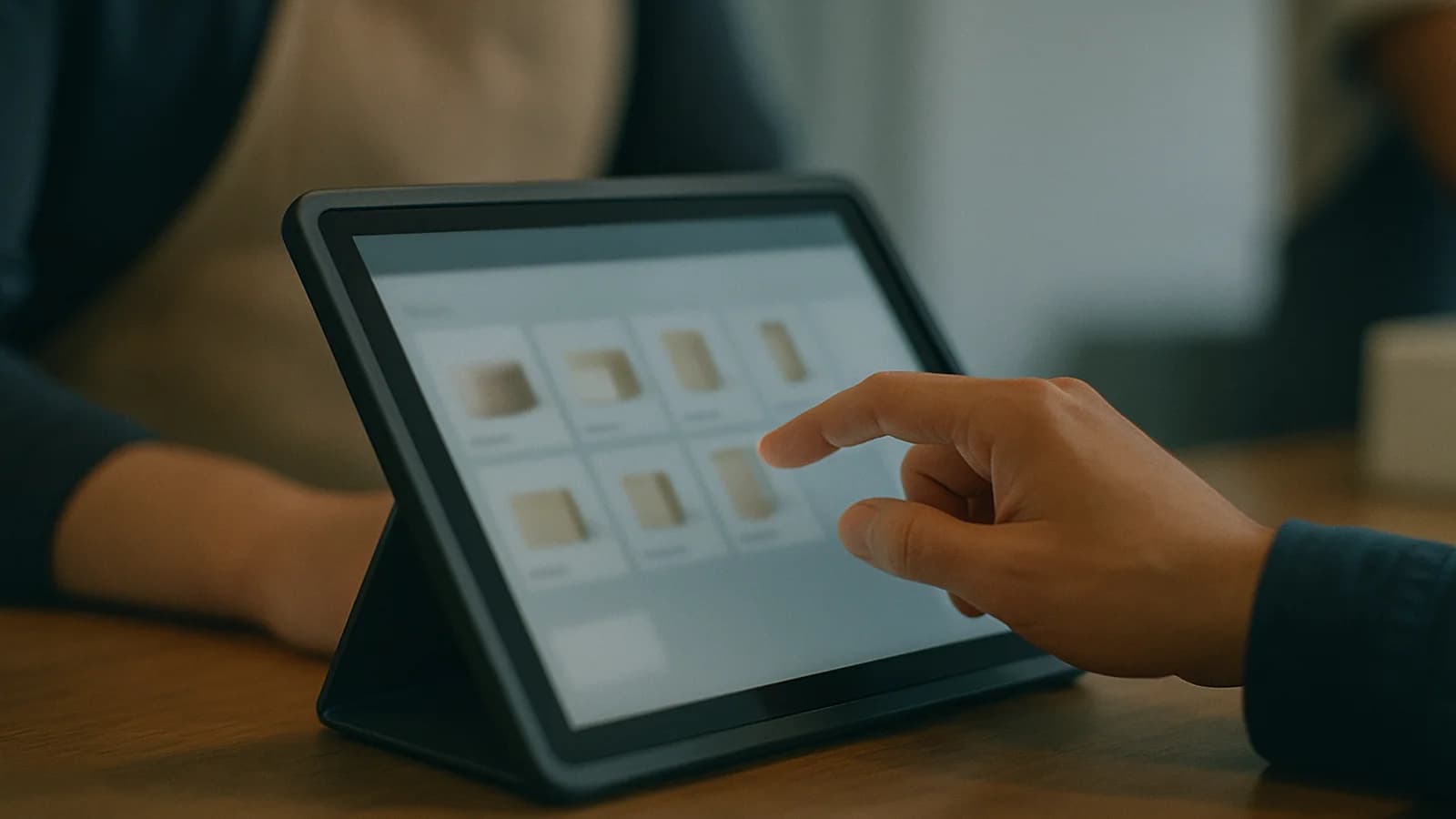
Quick Sale is for the customer who walks in, picks up two or three things and wants to pay and go. There is no customer to choose, no order to raise and no delivery to plan. The screen is a grid of product photos on one side and the current sale on the other, with one large Charge button at the bottom.
It sits beside the main till rather than replacing it. The main till handles account customers, price lists, line discounts and orders that are sent out later. Quick Sale strips that away for the morning rush, the lunchtime queue or a market stall, and appears in the menu as Quick sale.
How do I add products to a sale?
Tap them, scan them or search for them. The search box at the top reads "Search by name, SKU or scan…", and a USB or Bluetooth scanner works with no setup. On a phone or tablet a round camera button sits next to the box, so the device's own camera can read a barcode.
Each tile shows the product photo, its name and its price. Once a product is on the sale, its tile gets a highlighted border and a small number showing how many are in the sale, so a cashier can see at a glance that the milk is already in.
Whether a tap adds the product or opens its photo big depends on the device's When you tap a product setting, explained in our note on the big product photo.
Scanning a product you sell adds it to the sale, even while a big photo is open: the popup closes and the scanned item goes in. An unknown code also closes the popup, then opens the New barcode sheet. If a product cannot be sold here, the till says why instead of adding it.
Which till options does Quick Sale have?
The … button (More till options) at the top right holds two settings, both saved on the device you are using:
| Option | Choices | What it changes |
|---|---|---|
| When you tap a product | Show photo or Add to sale | Whether a tap opens the big photo or adds the item; shared with the other tills on the same device |
| Products per row | 2, 3, 4, 5 or 6 | How many tiles sit across the grid. Shown on a computer-sized screen; a phone always shows two |
Products per row starts at six. On a tablet with the cart beside the grid, the grid drops to fewer tiles when six would be too thin to read the names.
How do I change a quantity or take an item off?
Use the − and + beside each line in the sale. When the quantity is one, the − becomes a bin and removes the line. For more room, tap the line's name: a panel opens with the full product name, Price each, the stock figure when it is known, the Line total and large How many buttons. At the bottom sits Take off the sale, which removes the line in one tap.
The discount box under the lines takes a discount off the whole sale. Switch between the currency amount and %, then type the figure. The totals underneath show how many different products are in the sale, the subtotal, the VAT, any discount and the total, and the Charge button carries the same total.
How do customers pay?
Press Charge and the Take payment screen asks how the customer is paying. Quick Sale offers four ways:
- Cash: type the cash received, or tap one of the quick amounts (the exact total, then the total rounded up to the next 5, 10 and 50). If too little is entered, the screen shows how much is short.
- Card: take the payment on your card terminal, then confirm.
- QR: show your payment QR code to the customer, then confirm once they have paid.
- On account: search for the customer by name and the sale goes on their account. If they are over their credit limit, the sale is refused with that reason.
Press Confirm payment. When the customer handed over more cash than the total, the Sale complete screen shows the change to give back. If automatic printing is on in your printer settings, the receipt prints by itself. Otherwise press Print receipt only for customers who want one, or Done, next sale to clear the till.
Can I put a sale to one side?
Yes. Park clears the screen for the next person; you can give the parked basket a short name such as "red scarf" so it is easy to find again. Once something is parked, a badge with the count appears beside Park. Tap it to see the list and pick a basket up. Opening one while another sale is already on screen brings up a question first, with Park & open to swap them, so two baskets are never merged by accident.
Parked sales are kept on the server, so Park is greyed out while the till is offline. The sale on screen is still safe on the device.
How do refunds work from Quick Sale?
Press Refund in the header of the current sale. It opens Returns rather than building a refund from today's shelf prices. That matters: a refund priced from the shelf could pay back more than the customer paid after a price rise, or let the same receipt be refunded twice. In Returns the original sale is found from its receipt, only what is still returnable can come back, each item's condition is recorded, and the money goes back in cash or as credit on the customer's account.
Step by step: a walk-in sale on Quick Sale
- Open Quick sale from the menu. The sale panel reads "Nothing in the sale yet".
- Scan the first item, or tap its photo. With Show photo set, tap + on the photo to add it.
- Scan the same item again to add another, or use + on its line.
- No barcode? Type a few letters of the name and pick it from the results.
- If the customer changes their mind, tap the line's name and press Take off the sale.
- Enter a discount for the whole sale if you have agreed one, as an amount or a percentage.
- Press Charge and choose Cash, Card, QR or On account.
- For cash, tap a quick amount or type what they handed over.
- Press Confirm payment, then Print receipt if they want one.
- Press Done, next sale and serve the next customer.
What keeps the stock figures right?
Every sale updates stock as soon as it is recorded, and Quick Sale reloads its figures straight after your own sale. It also listens for sales made on other tills, and refreshes when you come back to the screen after working somewhere else, so a figure in the line panel is never hours old.
What do new Quick Sale users get wrong?
Three things come up again and again. First, cashiers type the total into Cash received out of habit; type what the customer actually handed over, or tap a quick amount, so the change is worked out for you. Second, staff sometimes look for a line discount; there is only the whole-sale discount, so anything more involved belongs on the main till. Third, a Refund tap leaves Quick Sale for Returns. Finish or park the current sale first, then refund, so the next customer's basket is not mixed up with a return.
Where Quick Sale fits
Quick Sale is one of several ways to sell. The POS till is the full counter for customers with accounts, price lists and orders. Barcode scanning explains exactly what each scan does on every till, including this one. Till settings lists every option on the main till and the business-wide switches that shape both. When a customer's order needs changing after it has been placed, see editing orders. At closing time, Quick Sale's takings are counted in the end of day cash up with the rest.
See it in a tour
Short guided tours of the real screens, with sample data. No sign-up.
- Milk, bread and a queueQuick keys for the everyday things, a basket that adds itself up, and cash or the tab.
- The morning rush: tap, tap, doneQuick keys for what sells most, the basket adds itself up, and cash or credit closes the sale.
- Two kottu to take away, one extra spicyTakeaway, the dishes, how spicy, cash and change, then straight to the kitchen screen.
- Saturday at the tillScan, pick the right colour and size, let the offer apply itself, and take the payment.
Questions people ask
How do I turn Quick Sale on?
It is an add-on switched on for your business. Until it is on, the Quick Sale page says it isn't turned on and asks you to contact your administrator.
Is Quick Sale a different till from the main POS?
It is a separate, simpler screen. It sells the same products from the same stock and its sales reach the same reports, but it keeps its own cart, its own list of parked sales and its own products-per-row setting.
Can I give a discount on one item in Quick Sale?
No. Quick Sale takes one discount off the whole sale, as an amount or a percentage. For a discount on a single line, or a customer's own price list, use the main till.
What happens to the sale if I leave the page?
It stays on that device. Go to another page and come back, and the lines and the discount are still there until you charge the sale or take everything off.
Why can't I see or sell a product in Quick Sale?
Quick Sale refuses a product with no selling price and never sells hire-only items. Products switched off in your catalogue are not listed, and if your business hides products with no stock on the till, those are hidden here too.
Who can use Quick Sale?
Once the add-on is on, Quick sale appears in the menu for owners, admins, managers, cashiers and sales reps.