On this page (9)
- What makes a street food counter hard to run?
- How is the street food setup different from a restaurant setup?
- Step by step
- Which screen handles which job at the counter?
- How do you keep a queue moving at peak?
- How do you know whether a night was worth it?
- How EasyTaskr helps
- See it in a tour
- Questions people ask
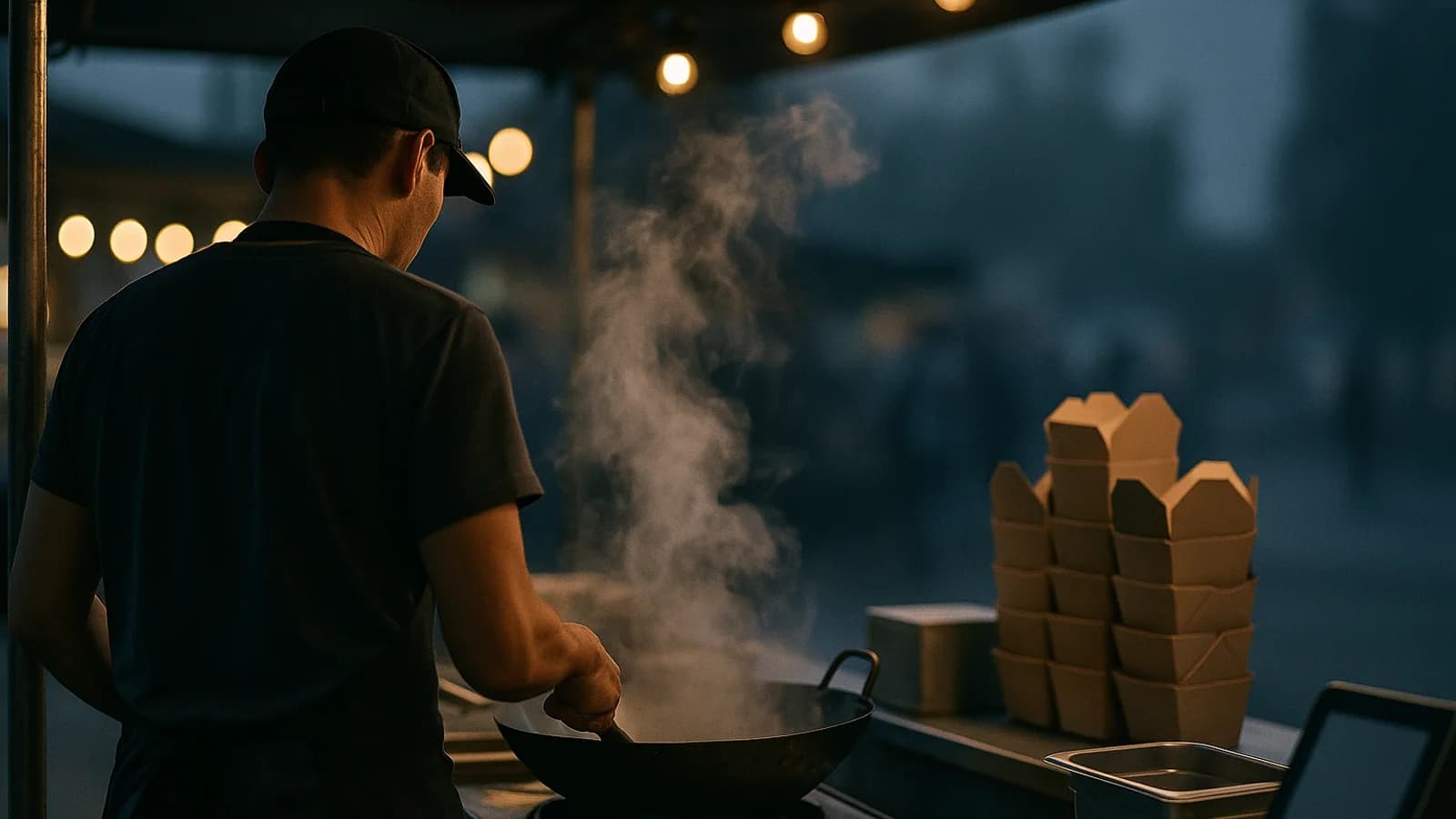
A street food stall or takeaway counter is a different business from a dining room. There are no tables to turn and no bookings to hold; there is a queue, one hot plate and a few minutes per order. EasyTaskr's street food setup is built around that: a quick counter till, a kitchen screen, a number on the wall when food is ready, and a short close at the end of the night.
What makes a street food counter hard to run?
Volume in a small space. Forty orders an hour through one cook means a lost slip, a wrong spice level or a forgotten bag costs more than the sale. It costs the queue's patience.
The problems are specific to a fast counter:
- Shouting orders over the noise of the griddle, and dishes made the wrong way.
- Special requests ("no egg", "extra spicy") written on a slip that slides off the rail.
- Running out of an ingredient at the market or mid-rush, while the counter keeps selling the dish.
- Customers asking "is mine ready?" every two minutes, blocking the counter.
- Bags sitting ready while the person they belong to waits outside.
- Cash and change under pressure, with a till that does not add up at close.
The fix is the same each time: one order record that the counter, the cook and the customer all see.
How is the street food setup different from a restaurant setup?
It is shorter. The street food menu in EasyTaskr has Home, the till, Orders, the Menu, the kitchen display, Suppliers and Offers, plus online orders and delivery when those are switched on. Tables, bookings and a separate Reports page are left out because a counter does not need them. The night's figures are read from Home instead.
Step by step
Here is one evening at a busy takeaway counter, from opening to shutters down.
- 16:30, the Menu. Before opening, check the Menu. It shows the dishes and how many are available tonight. The market had no cuttlefish, so tap 86 Item on the seafood dish. Its card is marked 86'd and the till leaves it out for the night. Make Available brings it back when the stock is in.
- 18:28, the till. A customer wants two dishes to take away. Pick Takeaway as the order type (the others are Dine In, Delivery and Online) and tap the dishes. The dish switched off at 16:30 is not on the screen.
- 18:28, choices without shouting. The chicken dish asks how spicy before it goes on the order, so the choice cannot be skipped. Anything else, like "no onion", goes in Special Instructions.
- 18:29, cash and change. Choose Cash, Card or Mobile. For cash, type the note the customer hands over into Cash Received and the till shows the change due. On the payment-complete step, Send to Kitchen stays ticked and the order goes to the kitchen screen. For a bottle of water on its own, untick it so the cook is not bothered.
- 18:30, the kitchen display. Counter, takeaway and delivery orders line up as tickets: new, cooking, ready. The cook ticks off each item as it is done, and notes like "no egg" sit on the line itself.
- 18:35, the ready screen. When the cook bumps the ticket, its number moves to Ready to collect on the screen facing the customers. They watch the screen, not the cook.
- 21:00, Orders. If bags start piling up, open Orders. Ready to hand over comes first, with minutes waiting on each, so an order that has been ready for twelve minutes stands out. Then what is still cooking, oldest first. Orders already collected fold into one line.
- 23:00, Home. After the last order goes out, Home shows what was taken from served orders tonight and confirms nothing is still open. Needs you now should be empty; a forgotten bag would sit right there. Below that: the average served order, takeaway against eat-in, cash against card, and the last seven days with tonight at the end.
Which screen handles which job at the counter?
Each job on a busy night maps to one screen.
| Job | Screen | What it saves |
|---|---|---|
| Stop selling a dish you cannot make | Menu, 86 Item | Refunds and apologies mid-rush |
| Take an order with a spice level | Food till, required choice | Remakes when the cook guesses wrong |
| Give change on a big note | Cash Received, Change Due | Mental maths with a queue watching |
| Get the order to the cook | Send to Kitchen, kitchen display | Shouting and lost paper slips |
| Tell customers their food is ready | Ready to collect screen | Questions at the counter every few minutes |
| Find a bag that has waited too long | Orders, Ready to hand over | Cold food and a customer still outside |
| Close the night | Home | Adding up slips after a long shift |
How do you keep a queue moving at peak?
Cut every step that does not cook food or take money. At a counter, seconds per order decide how long the queue is.
Three things help most. Keep the menu short and switch off anything you cannot make before you open, so the counter never has to say no. Put the questions that matter, like spice level, on the dish itself so the till asks them every time and nobody has to remember. And let the ready screen do the calling, so the person at the till keeps taking orders instead of shouting numbers.
Here is a worked example of why it matters. Say the counter takes 40 orders in the busiest hour, and each "is mine ready?" question costs 20 seconds of the cashier's time. If a quarter of customers ask once, that is 10 × 20 = 200 seconds, more than three minutes an hour spent answering instead of serving. A ready screen takes most of that back.
How do you know whether a night was worth it?
Compare tonight with the rest of the week. One good number means little; a pattern across seven nights tells you which evenings to open longer and which to staff lightly.
Home shows the last seven days with tonight last. Suppose tonight's takings were 186,000 from 412 served orders. The average order is 186,000 ÷ 412 ≈ 451. If Saturday was the best night of the week and Tuesday the quietest at half of that, it may be worth testing a shorter Tuesday. If most orders were takeaway, packaging cost belongs in your prices; the guide on how to price products shows how to build it in, and the food cost percentage guide explains the ingredient side. Cash against card on Home tells you what the drawer should hold before you count it, which the end-of-day cash-up guide walks through.
How EasyTaskr helps
EasyTaskr gives a street food counter a fast till with required choices and change worked out, a kitchen screen with tick-and-bump tickets, a Ready to collect screen for customers, an Orders list sorted by what is ready and what has waited longest, and a Home page that closes the night. When online ordering is switched on, orders from your link arrive in an inbox with a chime until someone accepts them.
See it in a tour
Short guided tours of the real screens, with sample data. No sign-up.
- Before the rush: tonight's menuOne tap takes a dish off for the night, so the counter never takes an order the kitchen cannot cook.
- Two kottu to take away, one extra spicyTakeaway, the dishes, how spicy, cash and change, then straight to the kitchen screen.
- The evening rush at a kottu counterEvery order on one kitchen screen, and a number on the wall when it is ready.
- Nine at night: who is still waiting?Orders shows food ready to hand over first, then what is cooking, oldest first, with minutes waiting.
- Shutters down: how the night wentHome closes the night: takings, nothing left waiting, takeaway against eat-in, cash against card, and the week.
Questions people ask
Can customers see when their order is ready?
Yes. When the cook bumps a ticket on the kitchen screen, its order number moves to Ready to collect on a customer-facing display, so people know without asking at the counter.
How do I take an order with a special request?
Dishes can ask a required question before they go on the order, such as how spicy. Anything else goes in Special Instructions and shows on the kitchen ticket.
Does the till work out change for cash?
Yes. Type the amount the customer hands over into Cash Received and the till shows the change due.
Do I need tables or bookings set up?
No. The street food setup leaves out tables and bookings. Orders are counter, takeaway, delivery or online, with an eat-in choice for anyone who sits down.
Can customers order online for pickup?
When online ordering is switched on, you get an order link for customers. Their orders arrive in an inbox with a chime until someone accepts or rejects them, and a busy button pauses new orders.
Where do I see the night's takings?
On Home. It shows what was taken from served orders, any orders still open, cash against card, takeaway against eat-in, and the last seven days.