Feature
Add by scanning: scan a pack, check the details, add your price
Add by scanning lets you build your product list by scanning packs one after another. For each barcode EasyTaskr looks up the name, brand, category, pack size and photo, and you add the selling price, cost and opening stock. Products you already have become add-stock rows. Nothing is saved until you press Review and save.
On this page (12)
- Who is add by scanning for?
- What does it do?
- How do I get to it?
- What happens when I scan?
- What is on the card?
- What about products I already sell, and cartons?
- Step by step: add a shelf of new products
- Does it work inside goods received and stocktakes?
- What does it not do yet?
- Related features
- See it in a tour
- Questions people ask
Who is add by scanning for?
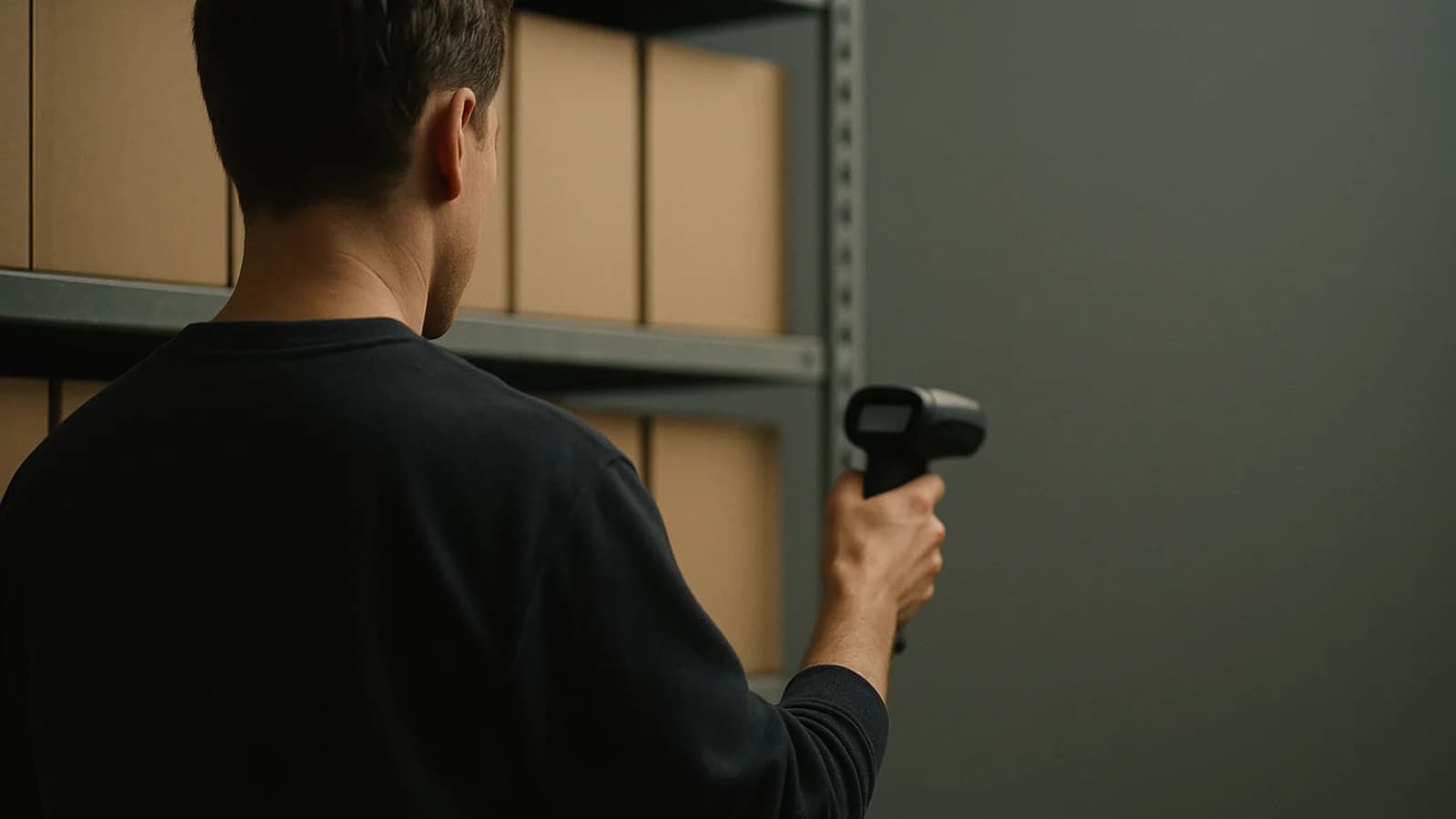
It is for the first week with EasyTaskr, when a shop has hundreds of products on the shelves and none in the system, and for every delivery after that which brings in new lines. Corner shops, pharmacies, mini-markets and wholesalers of packaged goods get the most from it, because most of what they sell already carries a maker's barcode.
What does it do?
- Turns a scan into a filled-in product card: name, brand, category, pack size and, where one exists, a photo.
- Leaves the money to you: selling price, cost price and opening stock are yours to type.
- Spots products you already have, and turns them into add-stock rows.
- Recognises carton codes and links them to the single product with how many are inside.
- Saves the whole batch in one go after you review it, and never twice if you press the button twice.
How do I get to it?
There is nothing to switch on: it comes with stock, which every product business has. It is not a row in the menu. Open Products and press Add by scanning, or use the same button on the empty products screen.
It is for owners, admins and warehouse managers. If your role cannot use it, the screen says "Ask a manager for access".
Two extras need the AI product feature, which is off by default and which your EasyTaskr contact switches on: reading the details from a photo of the pack, and Search the web for codes no database knows.
What happens when I scan?
The screen says "Scan a pack, check what we filled in, add your price, scan the next. Nothing is saved until you review." Scan with a USB or Bluetooth scanner, press Camera to use the device camera, or type the barcode and press Enter.
EasyTaskr checks the code before anything else. If the check digit is wrong, the card says so and asks you to scan again or type it; you can still save it if it is a label you printed yourself. Then it looks, in this order, at:
| Where it looks | What it can fill |
|---|---|
| Your own products, under every way of writing the code | Tells you it is already in your products |
| The shared EasyTaskr catalogue | Name, brand, category, pack size |
| Open product databases (food, beauty and pet food) | Name, brand, category, size, photo |
| Other barcode databases set up on the server | Name and brand |
| A photo you take, with AI on | Name, brand and size read from the pack |
The screen never waits for a lookup. "Looking up…" shows while the fields stay typeable, so a quick typist is never held back.
The shared catalogue holds only names, brands, sizes and outside photos. It never holds a price, a cost, stock levels or which shop added a product, and your own product photos are never shared. A name typed by one shop is offered to others only once two different shops agree, or an outside database agrees, which stops one mistake spreading to every till.
What is on the card?
The top half is filled for you: Name, Brand, Pack size, Category and the photo, with Take a photo if there is none. Where details came from Open Food Facts, the card says "Data from Open Food Facts (Open Database Licence)".
Below the line Only you can fill these come Selling price, Cost price and Opening stock. Businesses that sell goods with a printed maximum retail price also see MRP on pack, and the price check warns when your selling price is above it.
Each scanned row gets a pill: Found, In stock, Not found · take a photo, Carton code or Check the number.
What about products I already sell, and cartons?
A product already in your list shows "Already in your products." with In stock now, Adding and After saving, for example 40, 12 and 52. Saving adds the stock as a stock adjustment you can see in stock history, marked as received with add by scanning.
A carton code asks whether it is a carton of something you sell. Pick the product, fill Units in one carton and Cartons to add to stock. The carton code is saved on the product, so from then on the till, goods received and stocktake all count it as that many singles. If it is really a new product, press No, it is a new product.
Step by step: add a shelf of new products
- Open Products and press Add by scanning.
- Scan the first pack. Check the name, brand and pack size the card filled in.
- If there is no photo, press Take a photo.
- Type the Selling price, the Cost price and the Opening stock.
- Press Save and scan next, which keeps the row and clears the card for the next pack.
- Carry on down the shelf. Press Skip for anything you want to leave for later.
- When you have done the shelf, press Review and save.
- Check the list. Rows that are not ready stay behind under Not ready, stay in the list.
- Press Save with the count, and wait for every row to show Saved.
- Scan one of the new products at the till to check it rings up at your price.
New stock goes to your first warehouse. If one row fails, the others still save, and the failed row says why.
Does it work inside goods received and stocktakes?
Yes. When you scan a code that is not in your products while receiving a delivery or counting stock, a New barcode sheet opens with the same lookup and the same card. It saves the product at once so you do not lose your place, then Add and receive puts it on the delivery, or Add and count puts it in the count. The till's own New barcode sheet uses the same lookup too, and keeps its price-first layout so the sale carries on.
What does it not do yet?
- Trade product databases for medicines and electronics are not connected yet.
- Short UPC-E codes are read as 8-digit EAN codes, not expanded.
- Lookups from the open databases are limited to about a dozen a minute across EasyTaskr, so a very fast scanner may see "Looking up…" a little longer.
- Supplier and warehouse are not on the card; stock goes to your first warehouse.
Related features
Products added this way scan straight away with barcode scanning. If a product has no barcode at all, barcode labels can give it one and print it. For bigger deliveries, purchasing and stock and warehouses cover goods received and stock counts.
Tours of the real screens
See it in a tour
Short guided tours of the real screens, with sample data. No sign-up.
- Scan to sell at the tillPlug in a USB or Bluetooth scanner and test it, scan to sell, scan a multipack for its pack, and add an unknown code without leaving the sale.
- Scan to sell at the tillPlug in a USB or Bluetooth scanner and test it, scan to sell, scan a multipack for its pack, and add an unknown code without leaving the sale.
- Add a barcode to a product you already haveScan the maker's barcode into a product you already sell, get told if the code is taken, and give the gift box its own code that adds four at the till.
- Goods in, checked against the orderScan the purchase order, scan each case, flag what is short, let AI read the paper invoice, and the stock is up the moment it is saved.
A few things you might be wondering
Questions
people ask.
Have a question about your business?
Let’s talkWhere do the product details come from?
First your own products, then a shared EasyTaskr catalogue of names other shops have confirmed, then open product databases such as Open Food Facts. Prices, costs and stock never come from a lookup; only you fill those in.
Will a lookup overwrite something I already typed?
No. A field you have typed in, or one that is already filled, is never replaced. Each filled field shows where it came from.
What if I scan something I already sell?
It becomes an add-stock row instead of a new product. You type how many arrived and the card shows the stock before and after. The save refuses to make a second product with the same barcode.
What happens to my own in-store barcodes?
They are never sent outside EasyTaskr. Codes in the ranges kept for in-store and scale labels and for coupons are only matched against your own products.
The details look wrong. What do I do?
Correct them on the card, then press Wrong details? Report it. That entry stops being offered to other shops until it is checked.
Who can use it?
Owners, admins and warehouse managers, on any business that has stock. Others see Ask a manager for access. The photo and web reading need the AI product feature, which your EasyTaskr contact switches on.