Feature
Card reader at the till: the amount goes to the reader, no typing twice
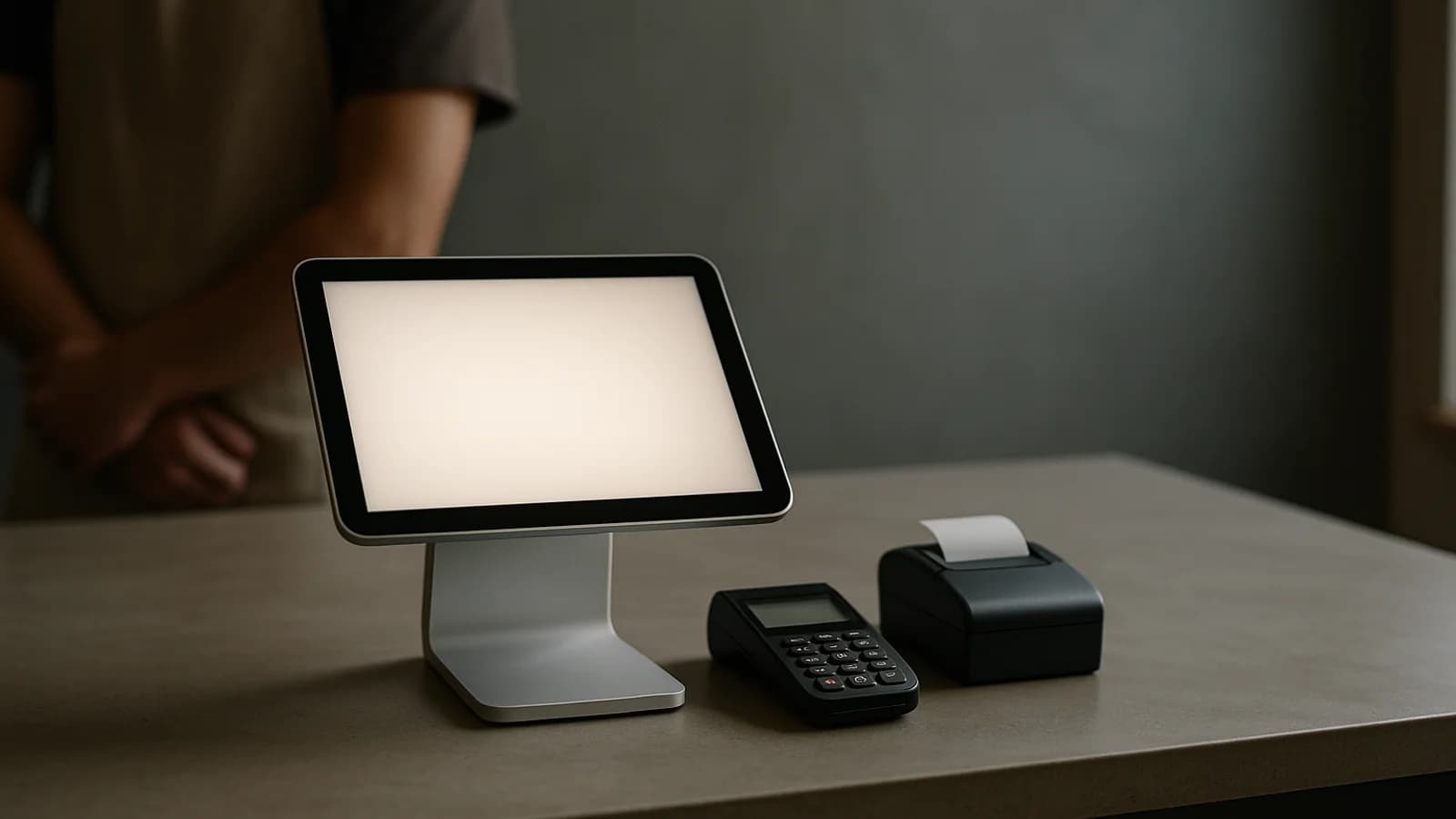
With a card reader connected, the cashier presses Card on any till and the till sends the exact amount to the reader. The customer taps, inserts or swipes, and the sale completes with the card brand, last four digits and authorisation code on the record. Nothing is typed twice, and a payment can never be taken twice. It uses Stripe readers and is off by default.

On this page (13)
- Who is the card reader for?
- What does it do?
- How do I switch it on?
- Can I try it before buying a reader?
- What happens at the till?
- What stops a payment being taken twice?
- Step by step: set up your first reader
- How do refunds and the books work?
- What should the cashier do when a card is declined?
- What does it not do yet?
- Related features
- See it in a tour
- Questions people ask
Who is the card reader for?
Shops, cafés and trade counters that take card payments and are tired of typing the amount into a separate machine. Re-keying is slow, and a mistyped £45.00 that should have been £54.00 is money you only find at the end of the day, if at all.
What does it do?
- Sends the exact amount from the till to the reader when the cashier presses Card.
- Saves the card brand, last four digits and authorisation code on the sale. The full card number is never stored.
- Splits a sale between card and cash, or card and the customer's account.
- Recovers safely if the connection drops in the middle of a payment.
- Refunds back to the same card from a return.
How do I switch it on?
The card reader is off by default. Your EasyTaskr contact switches it on for your business; it cannot be turned on from your own Settings yet. After that, the owner sets it up in Settings, Card reader.
The page reads "The till sends the amount to the card reader. No typing the amount twice." It has a few zones, top to bottom:
| Zone | What you do there |
|---|---|
| Stripe account | Press Connect Stripe and finish on Stripe. Only the owner or an admin can do this |
| Shop address | The address where the readers are used; Stripe needs it |
| Readers | Press Add reader, type the Code on the reader, then Pair with this till |
| At the till | Tips on the reader, off by default, and Wait for the card, how long the till waits |
| Card payments not on a sale | Any payment that went through without a sale, with Refund |
Readers are bought from Stripe on your own Stripe account. EasyTaskr does not sell readers.
Can I try it before buying a reader?
Yes. While the page shows Test mode, no real money moves. Add a simulated reader with the code the page gives, then press Test £1.00. The test screen offers Simulate tap and Simulate decline, so you can see what the cashier will see. A test payment is refunded by itself once it succeeds.
What happens at the till?
- Ring up the sale as normal and press Card.
- The Card payment sheet opens with the Amount on the card. Change it if the customer is paying part in cash.
- If you have more than one reader, choose Which reader?
- Press Send with the amount. The reader lights up with the exact figure.
- The customer taps, inserts or swipes.
- The sheet shows Paid on the card and the sale completes.
If the card is declined, the sheet says why in plain words, with Try again or Other payment. If nothing happens for a while, it shows "Nothing from the reader yet" with Keep waiting or Cancel on the reader. Cancelling always cancels on the reader first, then checks again: a payment that went through during the cancel is kept, not lost.
This works the same on the main till, Quick Sale and the industry tills such as the paint, tile, print, sports and repair counters. On those tills you can put part on the card and take the rest in cash; the drawer, the day summary and the books then count each part where it belongs. Gift cards and the card reader cannot pay the same sale: take the rest in cash, or use the reader on its own sale.
What stops a payment being taken twice?
Each sale attempt carries its own key. Pressing Card twice, or a till that retries after a dropped connection, finds the same payment rather than starting a new one. And a card payment can be attached to exactly one sale: if the same payment is sent twice, only one sale is saved.
If the till loses its connection mid-payment, the next time it opens it shows one of two banners:
- Payment in progress on reader: wait for it, or cancel it on the reader.
- Card payment taken, not on a sale: ring up the sale and choose Card, and this payment pays it, or refund it.
Step by step: set up your first reader
- Ask your EasyTaskr contact to switch on the card reader.
- Open Settings, then Card reader.
- Press Connect Stripe and complete Stripe's sign-up, or connect the account you already use for online payments.
- Fill in the Shop address.
- Order a reader from Stripe and switch it on. It shows a registration code.
- Press Add reader, type the code and give the reader a name, such as "Front counter".
- On the till device that will use it, press Pair with this till.
- Decide whether you want Tips on the reader, and set Wait for the card.
- Ring up a small real sale, pay by card, and refund it from a return with Back to the card.
How do refunds and the books work?
On a return, the question "Pay it back how?" offers Back to the card, with the card's brand and last four, as the default when the sale was paid on a reader, or Cash. The refund goes through Stripe first, then the return is posted. Partial refunds are fine, up to what was taken.
A card payment is recorded like any other card payment. With EasyTaskr's accounting on, it goes to card payments in transit until Stripe pays it out to your bank, and Stripe's fees are recorded when the payout is matched.
What should the cashier do when a card is declined?
Read the reason on the sheet out to the customer in plain words, because the reader's own screen is often too small to explain. Most declines are a card that needs to be inserted instead of tapped, or a bank asking for the PIN. Press Try again to send the same payment to the reader again; it is the same payment, so it can never be taken twice. If the customer wants to pay another way, press Other payment and the sale stays open for cash or account.
What does it not do yet?
- Only Stripe readers. Other card machine providers are not connected yet.
- Tap to Pay on a phone, with no separate reader, is not built.
- Card readers are not offered in every country. Where they are not, the page shows a short note instead.
- Every till needs its own reader pairing; a reader follows the till it is paired with.
Related features
The card reader works on the POS till, and card takings appear in your end of day totals. Customers paying on account are covered by customer credit. A customer can also see the amount on a customer display while they pay.
Tours of the real screens
See it in a tour
Short guided tours of the real screens, with sample data. No sign-up.
- Saturday at the tillScan, pick the right colour and size, let the offer apply itself, and take the payment.
- Paying the bread man from the tillCash out records money paid from the drawer, so the evening count still adds up.
- Milk, bread and a queueQuick keys for the everyday things, a basket that adds itself up, and cash or the tab.
- Selling a phone with a warrantyScan the IMEI, choose the warranty, add the case and the customer, take the payment and hand over a warranty card.
A few things you might be wondering
Questions
people ask.
Have a question about your business?
Let’s talkWhich card readers work?
Stripe Terminal readers, such as the WisePOS E and S700, ordered from Stripe on your own Stripe account. Money lands in your own Stripe balance, the same account your online card payments use.
What happens if the internet drops during a card payment?
When the till opens again it checks for card payments from that device. A payment still on the reader shows Payment in progress on reader; one that went through but is not on a sale shows Card payment taken, not on a sale, so you can use it on the sale or refund it. Money is never stranded.
Can part of a sale go on the card and the rest in cash?
Yes. Change the Amount on the card before sending it. After the card part is paid, choose Rest in cash or Leave the rest on account.
How do I refund a card sale?
On a return, choose Back to the card. The refund goes back to the same card through Stripe, never more than was taken.
Can customers add a tip on the reader?
Only if you switch on Tips on the reader. The reader then offers 5, 10 or 15% before the card. It is off unless you switch it on.
How do I get it set up?
Your EasyTaskr contact switches the card reader on for your business. Then the owner connects Stripe and adds the reader in Settings, Card reader. You can try it with a test reader before buying one.