Feature
Till extras: customer display, age checks, sold by and a weighing scale
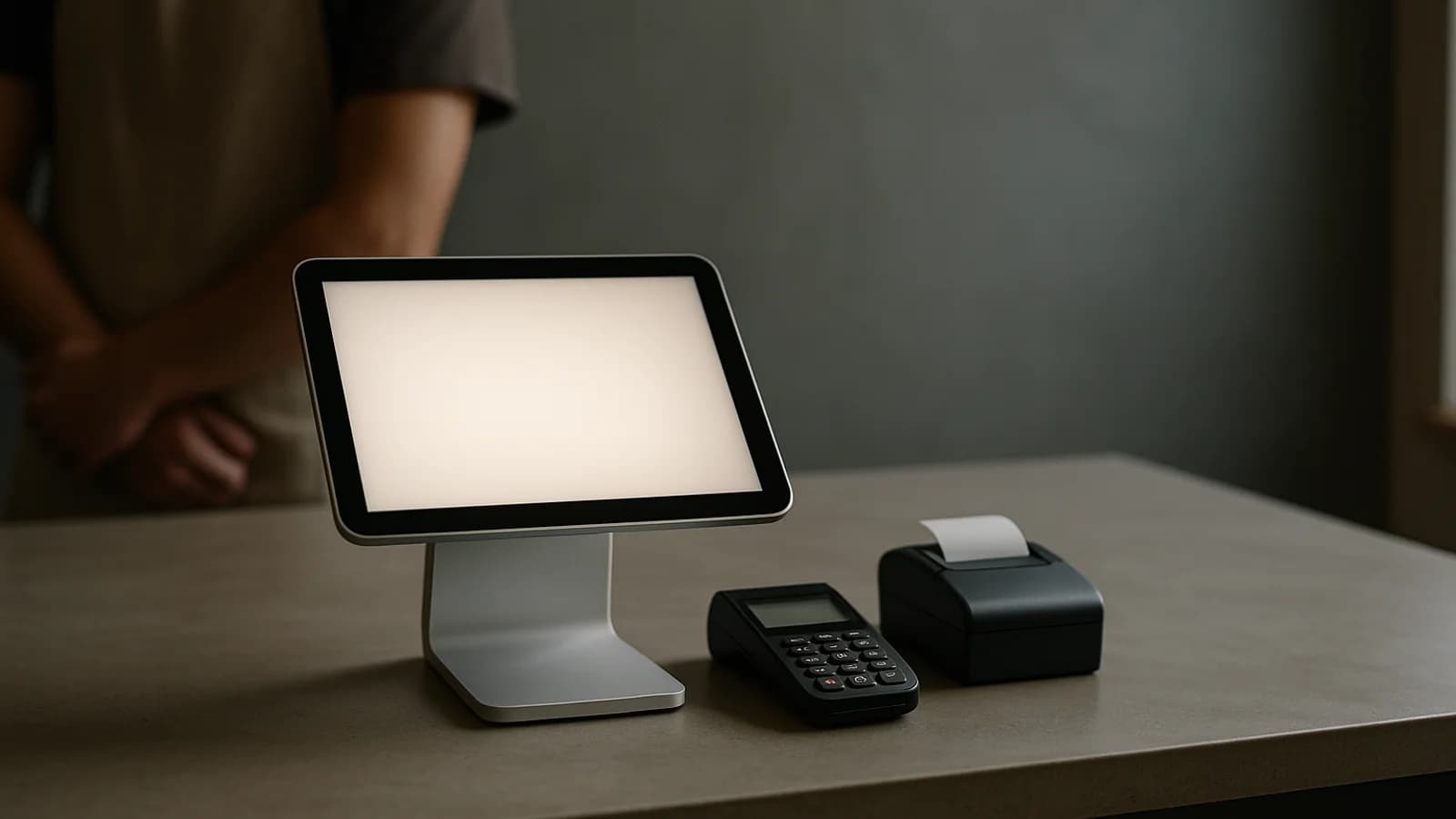
Till extras are four small additions to the till. A customer display shows the customer their items and total on a second screen or tablet. Age checks ask for ID when an age-restricted product is added and keep a record. Sold by records which staff member made the sale and works out commission. A weighing scale reads the weight straight into the till.

On this page (12)
- Who are till extras for?
- What do till extras do?
- How do I switch them on?
- How does the customer display work?
- How do age checks work?
- How do sold by and commission work?
- How does the weighing scale work?
- Step by step: set up a convenience store counter
- What does it not do yet?
- Related features
- See it in a tour
- Questions people ask
Who are till extras for?
Shops of every size that want a little more from the counter. Convenience and hardware stores need age checks for knives, solvents and energy drinks. Clothing, phone and furniture shops often pay staff commission. Delis, butchers, grocers and dried-goods shops weigh what they sell. And any shop with a queue benefits when the customer can see the total without leaning over the counter.
What do till extras do?
- Customer display: shows the customer their lines, savings, VAT and total, then the change and a thank you.
- Age checks: ask for ID the moment an age-restricted product goes on the sale, and record the answer.
- Sold by and commission: record who sold it, separately from who is logged in, and work out their commission.
- Weighing scale: read a steady weight from a scale on the till into a weighed product's line.
How do I switch them on?
There is no add-on to request: till extras are settings in your own business. Open Settings, the Invoices and tax tab, and the Till extras section: "A screen for the customer, who sold it, and a scale on this till."
| Extra | How it is switched on | Off by default? |
|---|---|---|
| Customer display | The Customer display switch | Yes |
| Sold by and commission | The Ask who sold it switch | Yes |
| Weighing scale | Use a scale on this till, saved on that device only | Yes |
| Age checks | An Age restriction on a product or category | Nothing happens until you set one |
Only owners, admins and managers can change these settings. The section is not shown to restaurants and street-food businesses.
How does the customer display work?
Switch on Customer display. You can also add up to ten pictures under Pictures while nobody is paying; they play as a slideshow when the till is idle, otherwise your logo shows.
The till then has a Display button. It offers:
- Open on the second screen: a full-screen display on a second monitor, in the EasyTaskr desktop app.
- Open in a new window: a browser window you drag to the second screen.
- Pair a tablet: shows a short code. On the tablet, open the display page, type the Code and press Connect. The code works for 10 minutes; once paired, the tablet stays connected for the day and can be unpaired from the till.
The display shows Welcome, then the lines as they are added, with any savings from offers and the VAT. When paying it shows To pay and Your change, then Thank you. The numbers are large enough to read from across the counter.
How do age checks work?
Open a product and set Age restriction to 16 or over, 18 or over or 21 or over. You can set the same on a category, such as all knives at 18+, and products in it follow the category unless they have their own.
When the first restricted item lands on a sale, a sheet opens and the cashier cannot take payment until it is answered. It shows the date the customer must be born on or before, worked out from today. Where Challenge 25 is the rule, the sheet is titled with it and adds "Ask anyone who looks under 25 for photo ID with a date of birth." Elsewhere it reads "Check ID".
The cashier presses one of:
- ID seen – OK
- Looks over 25, or Over the age, no ID needed where Challenge 25 does not apply
- Refused – take them off the sale, which removes every restricted item
"Every answer is saved with your name and the time." A later item with a higher age asks again. The Age checks report under Reports lists every check and counts refusals, which is useful evidence for a licence holder. Press Export CSV to keep a copy.
How do sold by and commission work?
Switch on Ask who sold it. The cart shows a Sold by chip, separate from the cashier who is logged in. Tap it to choose who made the sale; the till remembers the choice on that device. For a sale two people shared, choose Split this sale by line.
Commission rules sit just below the switch, under Commission. Set a rate for Everything else, as a percentage of the sale or of the margin, then add Rule for a category where a category pays differently. A category rule wins over the default. Press Save rules.
A worked example: the default is 2% of the sale and phones pay 10% of the margin. A salesperson sells accessories worth 50,000 net of VAT and phones worth 400,000 with a margin of 60,000. Their commission is 1,000 on accessories and 6,000 on phones, 7,000 in all. If a customer brings a phone back, that phone comes off. Lines with no known cost earn no margin commission, and the report counts them so you can fix the costs.
The Commission report shows what each salesperson sold, their margin and the commission, with Export CSV. Paying commission through payroll is not built; the report is for you to pay it your own way.
How does the weighing scale work?
The scale needs the EasyTaskr desktop app, plugged into the till computer. Switch on Use a scale on this till, then set the Port, Scale type, Speed (baud) and what The scale shows (kg, g, lb or oz), and press Test the scale. These are saved on that till only.
Products sold by the kilogram, gram or pound open a Weigh sheet when added. Put the goods on the scale; the sheet shows Settling… then Steady, and Use with the weight only when the reading has settled. Tare takes off the container. If there is no scale, type the weight and press Add.
Step by step: set up a convenience store counter
- Open Settings, then Invoices and tax, then Till extras.
- Switch on Customer display and add two pictures of this week's deals.
- Open your knives, solvents and energy drinks categories and set the right age on each.
- Ring up a test sale with a craft knife and check the age sheet opens and blocks payment.
- Press ID seen – OK and finish the sale.
- On the till, press Display, then Pair a tablet, and type the code on the tablet facing the customer.
- Ring up another sale and check the customer sees each item and the total.
- Open Reports and the Age checks report to see the test entries.
What does it not do yet?
- The customer display does not show a payment QR code yet.
- A refusal does not print a refusal slip; the report is the record.
- Commission is reported, not paid through payroll.
- The scale and the second-screen display need a recent desktop app; an older one falls back to typing the weight and opening a window.
Related features
These extras sit on the POS till beside the options in till settings. The display shows savings from customer offers, and the card amount for the card reader. Commission and age checks join the other reports.
Tours of the real screens
See it in a tour
Short guided tours of the real screens, with sample data. No sign-up.
- Saturday at the tillScan, pick the right colour and size, let the offer apply itself, and take the payment.
- Milk, bread and a queueQuick keys for the everyday things, a basket that adds itself up, and cash or the tab.
- The morning rush: tap, tap, doneQuick keys for what sells most, the basket adds itself up, and cash or credit closes the sale.
- Before the doors openHome shows what is running low, the last sales and the week so far before the first customer.
A few things you might be wondering
Questions
people ask.
Have a question about your business?
Let’s talkWhere do I switch these on?
In Settings, on the Invoices and tax tab, in the Till extras section. Customer display and Ask who sold it are switches there, off until you turn them on. The scale is set on each till. Age checks start by themselves when a product or category has an age restriction.
What can the customer display run on?
A second screen on the same computer, a new browser window, or a separate tablet paired with a short code. The second-screen option needs the EasyTaskr desktop app.
What does the age check record?
Every answer, with the cashier's name, the time, the age, the products and the sale. The Age checks report lists them with the number of refusals, and can be exported.
How is commission worked out?
From what each person sold, net of VAT and less anything brought back, at a percentage of the sale or of the margin. You set a default rule and, if you want, a rule per category. The Commission report shows the result.
Does the scale work in a normal browser?
No. Reading a scale needs the EasyTaskr desktop app. In a browser, products sold by weight ask for the weight to be typed instead.
Do restaurants get till extras?
The Till extras section is not shown to restaurant and street-food businesses, whose tills work differently.