Skip to content

What you get

Everything the business runs on,
in one place.

Switch on the parts you need. The rest stay out of the way until you want them, and none of them is a separate product with its own login.

  • 16

    trades it is already set up for

  • 3

    kinds of printer: laser, thermal and dot-matrix

  • 0

    card details needed to start

  • 1

    login for the till, the stock and the money

The main parts

The screens you will use every day.

Real screens from the app, with sample figures.

Selling and tills

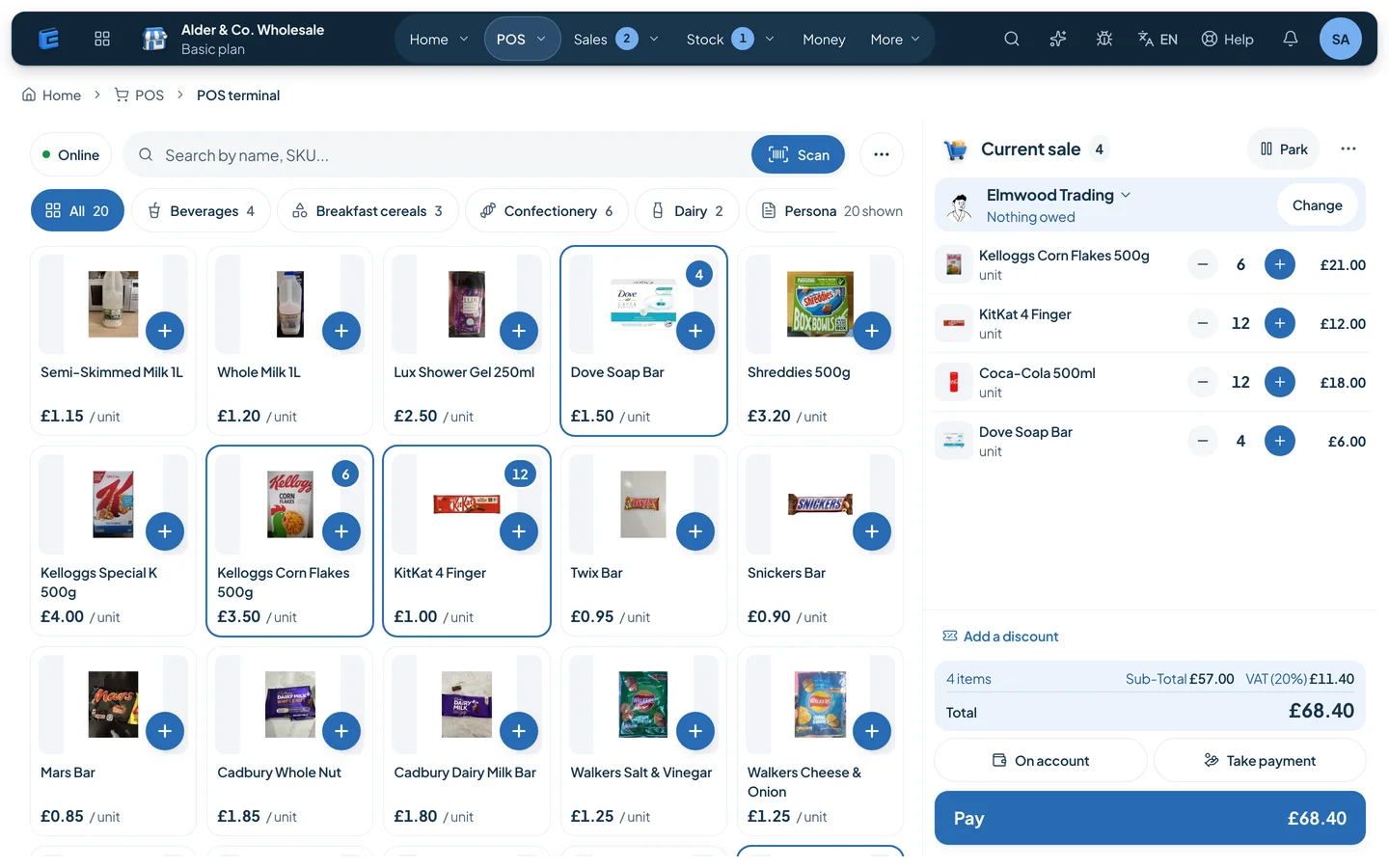
Ring up a sale on a till, a tablet or a phone. Scan, tap or search, and keep selling when the internet drops.

  • Touch till and quick sale
  • Cash, card and on account
  • Receipts printed or sent
  • Refunds and returns
The till: product photos to tap, a trade customer chosen, and the sale with VAT ready to pay or put on account

Stock and warehouse

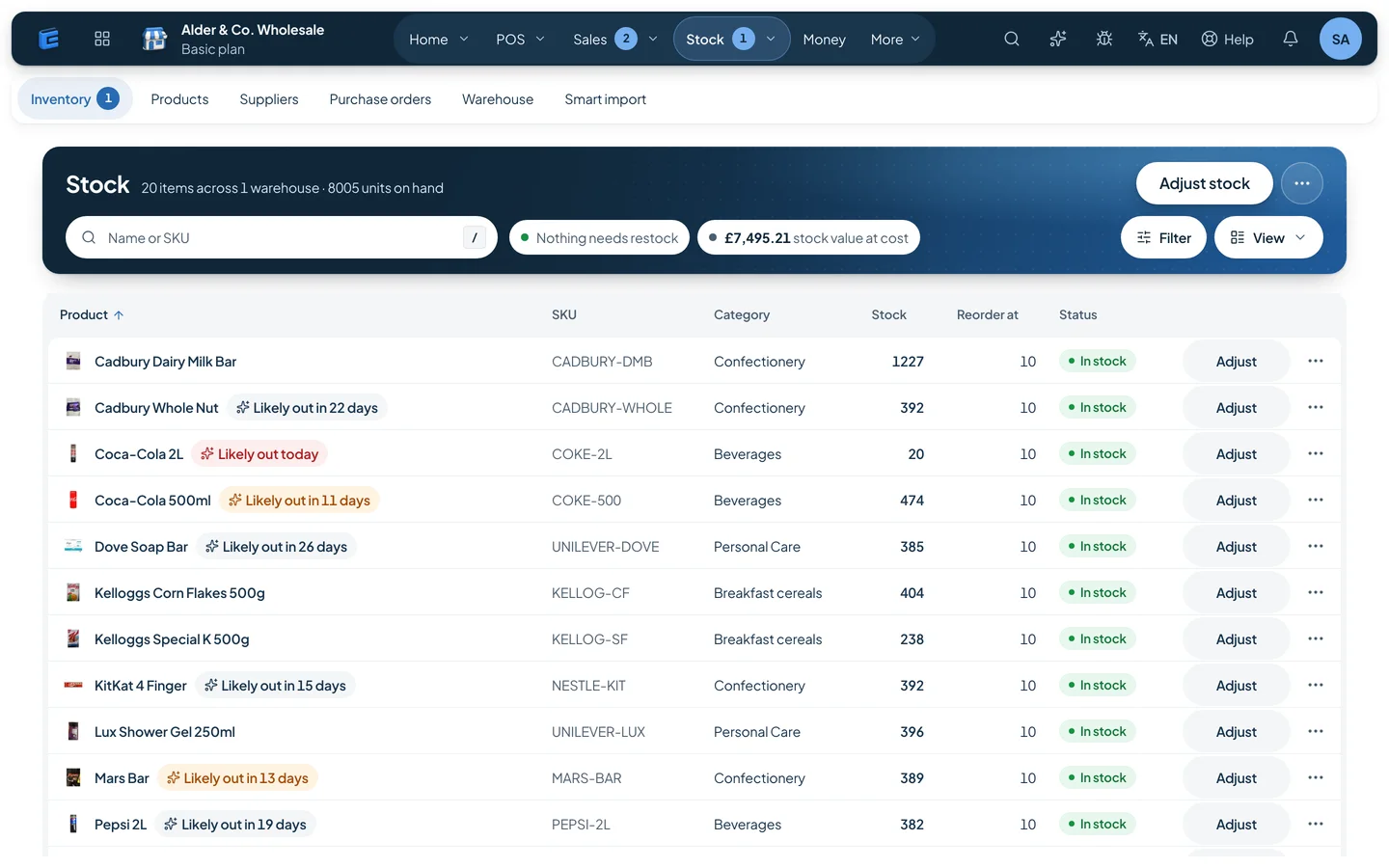
Know what you actually have. Check goods in against the order, count it, move it between places, and hear before you run out.

  • Goods in against the order
  • Stock counts
  • Low-stock warnings
  • More than one warehouse
Stock list: every product with what is on hand, its reorder point and a hint of when it is likely to run out

Invoices and money in

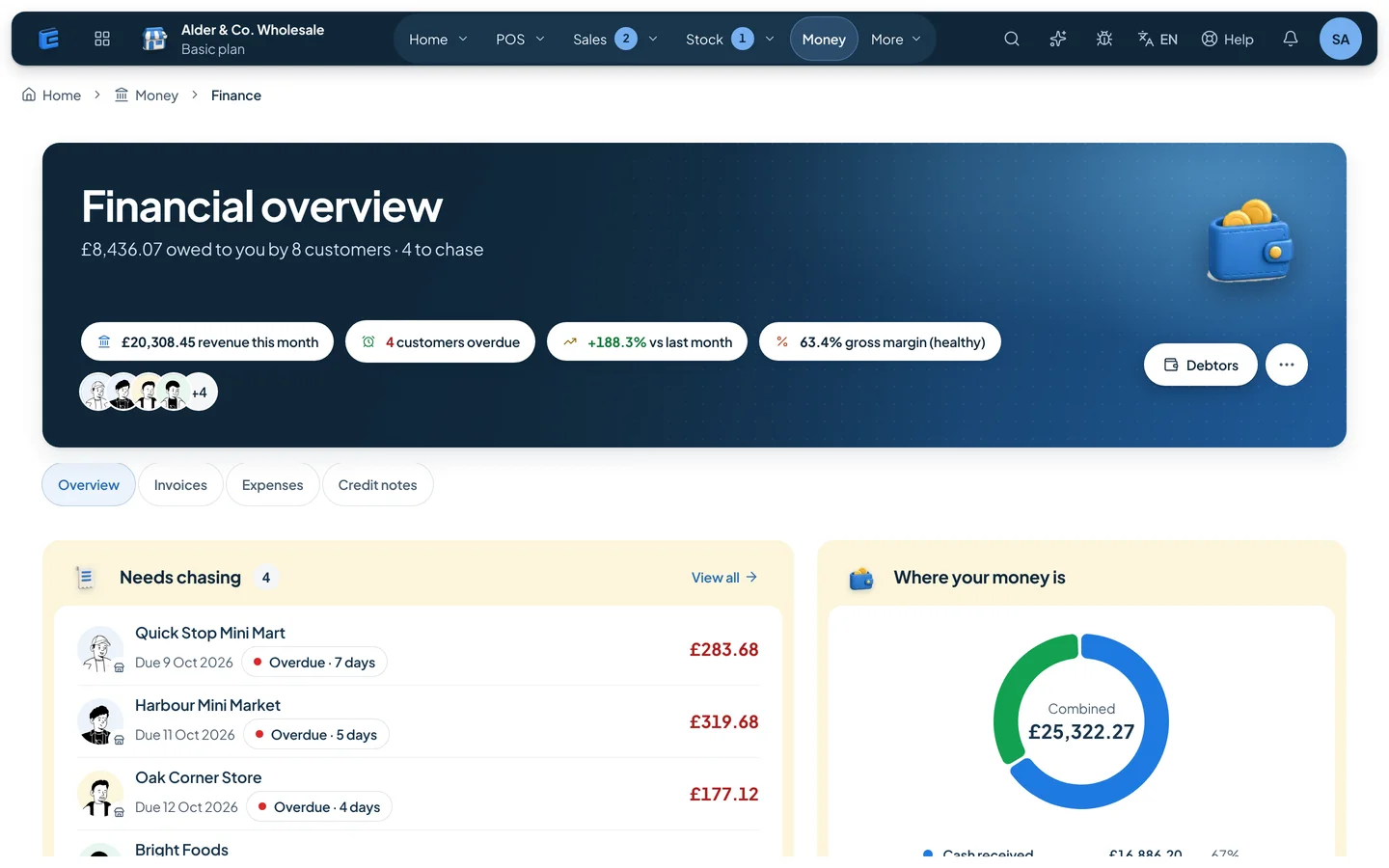
Raise an invoice from an order, see who owes you oldest first, and send the reminder from the same screen.

  • Invoices and credit notes
  • Quotes and proformas
  • Who owes you, by age
  • Reminders and statements
Money overview: what customers owe, who is overdue, revenue this month and gross margin

Delivery and drivers

Plan the round, send the driver, and mark every drop done or failed in the office.

  • Delivery runs
  • Driver app on the phone
  • Status per drop
  • Failed drops with a reason

Reports and the daily note

A short summary of the day, the week or the month by email, written from your own numbers, plus the reports behind it.

  • Daily, weekly or monthly email
  • Sales by product
  • Margin and discounts
  • Export to a spreadsheet

Also in the box

The parts that sit around them.

Wholesale portal

Trade customers order from you directly, at their own prices, without ringing anybody.

  • Trade log-in
  • Price lists per customer
  • Credit limits
  • Statements

Customers and channels

One customer record behind the till, the portal and the online shop, so the history is in one place.

  • Customer records
  • Shop and catalogue links
  • Marketplace listing
  • Offers and discounts

Prices and discounts

Set prices once and let them follow the customer, the channel and the quantity.

  • Price lists
  • Quantity breaks
  • A limit on discounts
  • Promotions

Staff hours and wages

Staff clock in and out with a PIN, and wages are worked out by the hour, the day or the month. Simple by design: it is not a tax payroll.

  • Clock in and out with a PIN
  • Hourly, daily or monthly wages
  • Roles and permissions
  • End-of-day close

In more detail

How the parts fit together, and how to set them up

Every part of EasyTaskr writes to the same records, so a sale on the till takes stock off the shelf, an on-account sale adds to the customer's balance, a payment against an invoice clears it, and the reports read all of it. Set up products first, then customers and prices, then the till, then invoices, deliveries and the end-of-day close.

In this section (6)
  1. How do the parts connect?
  2. Which part replaces what?
  3. Step by step
  4. What should you switch on first?
  5. What mistakes slow people down?
  6. Questions people ask

How do the parts connect?

They share one set of records. Nothing is copied from one part to another overnight, and nothing has to be typed twice. That is the practical difference between one system and four separate tools: the till, the stock sheet, the invoice book and the customer list cannot disagree, because they are the same data.

A few examples of what that means on an ordinary day:

  • A till sale takes the stock off. Sell three tins at the counter and the stock figure for that product drops by three, so the low-stock list is based on what is really left.
  • A sale on account becomes money owed. Put a trade customer's sale on account and it is added to their balance, checked against their credit limit, and starts ageing from that day.
  • A payment clears the right invoice. Record a payment against an invoice and the balance and ageing update, so the next statement is right without anyone adjusting it.
  • Goods in put stock back. A goods received note adds the delivered quantities to stock and records what was actually received against the order.
  • Reports read the lot. Sales, profit by product, margin, stock value at cost and at selling price, and the discounts given all come from the same sales and stock, so the numbers agree with each other.
  • The day closes once. The end-of-day close counts the cash against what the till recorded and locks the day, so a sale cannot quietly move into yesterday.

Which part replaces what?

Most businesses arrive with a mix of tools. This is how they map across:

What you use todayThe part in EasyTaskrWho uses it most
A till or cash registerThe till (POS) on a tablet, computer or phoneCounter staff
A stock spreadsheetStock across warehouses, goods received, adjustments, stocktakesWarehouse and stores
An invoice templateInvoices, proformas, credit notes and paymentsOffice and finance
A notebook of who owes whatCustomer balances, credit limits, ageing and statementsOwner and finance
Phone and message ordersOrders from sales reps and from a customer catalogue linkSales team
A delivery list on paperDeliveries with driversDispatch and drivers
Adding up at the end of the monthReports, with export to CSVOwner and accountant
A cash book at closing timeEnd-of-day cash up and day lockManager

Step by step

Set it up in this order. Each step uses what the one before it created, so doing it out of order means going back.

  1. Bring your products in. Open Smart import and drop in your product list: a CSV or Excel file, or a PDF such as a supplier price list. Check names, prices and cost prices before going further, because every report depends on cost prices.
  2. Set your VAT rates and check prices. Make sure each product has the right rate and that prices are entered the way you sell them, including or excluding VAT. VAT is then worked out on every line for you.
  3. Set up where stock lives. Add each warehouse or store, then record opening stock with a stocktake, so the first figures are counted rather than guessed.
  4. Add customers and their terms. Enter trade customers with their credit limits, and give the ones on special terms a price list or discount. Walk-in customers need no record at all.
  5. Add your team. Give each person their own login and the role that matches their job, under Users and roles.
  6. Take a real sale on the till. Ring one up, take payment, print or send the receipt. Check that the stock dropped and the sale appears in the sales report. If anything looks wrong, fix it now, while there is one sale to trace rather than a hundred.
  7. Raise one invoice and record its payment. Do it for a real trade customer, then check their balance and statement.
  8. Turn on the parts around the edges. Orders from reps or a catalogue link, deliveries with drivers, offers. Add them when the core is running smoothly, not all on day one.
  9. Close the first day properly. Cash up, compare with what the till recorded, and lock the day. Do it every day from then on.
  10. Hide what you do not use. In Settings, open Menu visibility and hide any pages your business does not need, so staff only see the screens that matter to them.

What should you switch on first?

Start with the parts that touch money every day, and add the rest once staff are comfortable. A rough guide by type of business:

  • A shop or counter business: the till, products and stock first; the end-of-day close in the first week; customer accounts if you give credit.
  • A wholesaler or distributor: products, customers with credit limits and price lists first; invoices and payments next; orders from reps and catalogue links, then deliveries.
  • A restaurant or takeaway: the menu, the till and the kitchen display screen first; tables and QR ordering once the kitchen trusts the screen.
  • A business that signs contracts or quotes: add e-signature, so agreements come back signed without printing.

What mistakes slow people down?

Three come up more than any others:

  • Skipping cost prices. Without them, profit, margin and stock value at cost are incomplete. Fill them in during the import, not later.
  • Starting from guessed stock. If opening stock is wrong, every low-stock flag and reorder suggestion after it is wrong too. Count first; our stocktake guide shows how.
  • Sharing one login across the counter. It is quicker on day one and costly later: the activity log cannot say who changed a price or a customer record, and you cannot limit what each person sees. Give every person their own login from the start.
  • Running the old tool alongside for months. A week of overlap is reassuring. Months of it means two sets of numbers that never quite agree. Pick a date and stop.

For a broader comparison of a till on its own against one connected system, read POS vs ERP, and for keeping stock right once you are running, the stock control guide.

A few things you might be wondering

Questions
people ask.

Have a question about your business?

Let’s talk
What file can I bring my product list in?

Smart import takes a spreadsheet (CSV or Excel) or a PDF, such as a supplier's price list. Check the products it creates before you start selling.

Can I hide parts I do not use?

Yes. An admin or owner can hide and show pages in Settings, under Menu visibility. Hidden pages stay out of everyone's menu until you show them again.

Do the till and the invoices use the same customers?

Yes. There is one customer record behind the till, invoices, orders and statements, so a sale on account at the counter shows on the same balance and ageing as an invoice from the office.

Does EasyTaskr file my VAT return?

No. It works out VAT on every line with your own rates and shows it on invoices and receipts, and the reports give your accountant the figures. Filing the return stays with you or your accountant.

Can stock be held in more than one place?

Yes. Stock can sit across several warehouses or stores, with goods received, adjustments and stocktakes recorded against each one.

What if a part I need is not on my plan?

Pages that are not on your plan do not appear in Menu visibility. Contact support to add a feature.

Talk to us

Not sure which parts you need?

Tell us what you sell and we will tell you what to switch on. It takes one conversation, not a sales process.